


Aajkal aapne social media par aise animated explainer videos or reels zaroor dekhe honge, jinmein mythology, historical events ya interesting stories ko beautiful 2D folk art style visuals ke saath explain kiya jata hai.
Aise videos dekhne mein kaafi interesting lagte hain, lekin agar aap khud banana chahein toh kai questions aate hain. Story kahan se milegi? Script kaise likhenge? Voiceover kaise banega? Aur story ke according visuals aur video kaise create honge?
Agar aap beginner hain, toh in sabhi steps ko alag-alag manage karna thoda confusing ho sakta hai.
Is process ko easier banane ke liye aap Claude AI ki Folk Art Explainer Reels skill use kar sakte hain. Is skill ke through aap story ideas aur scripts generate karne ke workflow se shuruaat kar sakte hain. Video mein dikhaye gaye process mein voiceover aur visuals create karne ke steps bhi shamil hain.

Is guide mein hum step by step samjhenge ki Claude AI mein Folk Art Explainer Reels skill kaise install karein aur iska use karke apna pehla folk-art-style explainer video kaise banayein.
What Is Folk Art Explainer Reels Skill?
Folk Art Explainer Reels ek Claude AI skill hai, jo folk-art-style explainer videos banane ke workflow mein help karti hai.
Agar aap mythology stories, historical incidents, educational topics ya interesting facts ko animated explainer videos ke form mein present karna chahte hain, toh yeh skill aapke kaam aa sakti hai.
Iska main benefit yeh hai ki aapko har step ke liye alag se detailed instructions likhne ki zaroorat nahi padti. Skill ke saath chat start karne par yeh aapse kuch initial questions poochti hai aur aapke selected workflow ke according aage guide karti hai.
Video mein dikhaye gaye demonstration ke according, aap is process mein:
- New story ideas generate kar sakte hain.
- Apni selected story ka script banwa sakte hain.
- Video ki duration aur language specify kar sakte hain.
- Voiceover-ready script ke saath kaam kar sakte hain.
- Generated voiceover ko Claude AI mein upload kar sakte hain.
- Story ke according images aur video generation ka process start kar sakte hain.
Note: Dhyan rahe ki final output aur available features aapke Claude account, skill file aur current usage limits par depend kar sakte hain.
What You Need Before Getting Started
Skill install karne se pehle kuch basic cheezein ready rakhein:
- Claude AI Account: Skill use karne ke liye Claude mein sign in karna hoga.
- Chrome Browser: Video mein browser-based workflow dikhaya gaya hai. Aap Chrome se Claude open kar sakte hain.
- Folk Art Explainer Reels Skill File: Claude mein upload karne ke liye skill ki file chahiye.
- Internet Connection: Skill upload aur AI generation ke liye internet access zaroori hai.
- Voiceover Tool: Demonstration mein voiceover generate karne ke liye OpenAI.fm ka use kiya gaya hai.
Skill file aapko us source se milni chahiye jahan se aapne ise download kiya hai. Upload karne se pehle file ka source check kar lena achha rahega.
How to Install Folk Art Explainer Reels Skill in Claude AI
Sabse pehle humein Claude AI mein skill upload karni hogi. Agar aapne pehle kabhi Claude mein custom skill install nahi ki hai, toh neeche diye gaye steps follow karein.
Skill install karne ke liye pehle file download karein. Iske baad neeche diye gaye installation steps follow karein.
Step 1: Open Claude AI
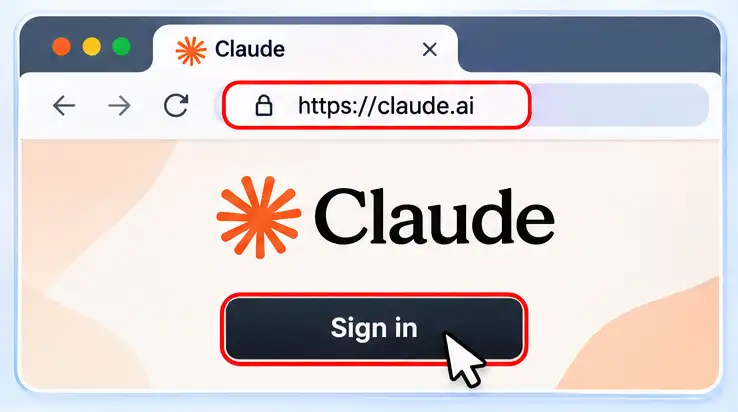
Apne browser mein Claude AI ki official website open karein: https://claude.ai
Apne account se sign in karein. Agar aapka account nahi hai, toh pehle account create karna hoga.
Step 2: Open Claude Settings

Claude open hone ke baad profile ya account menu par click karein.
Ab Settings option open karein. Yahan aapko account se related alag-alag settings milengi.
Step 3: Navigate to Skills

Settings mein Customize section open karein aur wahan Skills option par click karein.
Yahan aap apne account mein available skills ko manage kar sakte hain.
Step 4: Upload the Skill File
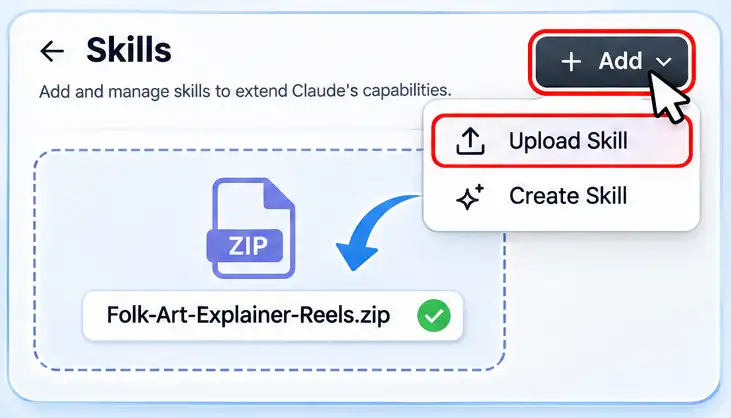
Skills section mein Add option par click karein.
Ab Upload Skill select karein. Iske baad file picker open hoga, jahan se apne device mein saved Folk Art Explainer Reels skill file select karein.
File select karne ke baad upload process complete karein.
Step 5: Enable the Skill
Upload complete hone ke baad skill aapki Skills list mein dikhni chahiye.
Folk Art Explainer Reels ko locate karein aur check karein ki skill enabled hai.
Is tarah Claude AI mein skill install karne ka process complete ho jayega.
Note: Claude ka interface aur settings ke options update ho sakte hain. Agar aapko koi option alag jagah dikhe, toh current interface ke according usse locate karein.
How to Start Using Folk Art Explainer Reels Skill
Skill upload karne ke baad ab iska use karne ka time hai.
- Claude AI ke Skills section mein Folk Art Explainer Reels ko locate karein.
- Skill ke paas diye gaye three-dot menu par click karein.
- Try in Chat option select karein.
- New chat open karein.
- Skill ko chat mein activate karne ke liye Send par click karein.
Ab skill apne workflow ke according aapse kuch questions pooch sakti hai.
Video mein dikhaye gaye demonstration mein skill ne teen starting options diye:
- Voice-over ready
- I have a script and need a voice-over
- Need an idea and script
Agar aapke paas abhi koi story ya script nahi hai, toh idea aur script wala option choose kar sakte hain.
How to Generate Story Ideas and Scripts
Agar aap beginner hain aur samajh nahi aa raha ki kis topic par video banayein, toh yeh step kaafi useful hai.
Demonstration mein creator ne Need an idea and script option select kiya tha.
Iske baad skill ne 10 story ideas suggest kiye. Aap un ideas ko read karke apni pasand ka topic select kar sakte hain.
Choose Your Story Idea
Generated list mein se jis story par video banana hai, uska number enter karein.
For example, agar aapko list ka sixth idea pasand aata hai, toh 6 enter kar sakte hain.
Specify Video Duration and Language
Story select karne ke baad aapko video ki duration aur language specify karni hogi.
For example:
- Duration: 45 seconds
- Language: Hindi
Aap apni requirement ke according duration aur language specify kar sakte hain. Demonstration mein 45-second Hindi story ka example use kiya gaya tha.
Generate Your Script
Ab apni requirements submit karein.
Claude AI selected topic ke according script generate karega. Demonstration mein script Roman Hindi mein generate hui thi, jise creator ne copy karke next step ke liye use kiya.
Script milne ke baad use ek baar read zaroor karein. Story ka flow, pronunciation aur duration check karna useful rahega.
How to Generate AI Voiceover Using OpenAI.fm
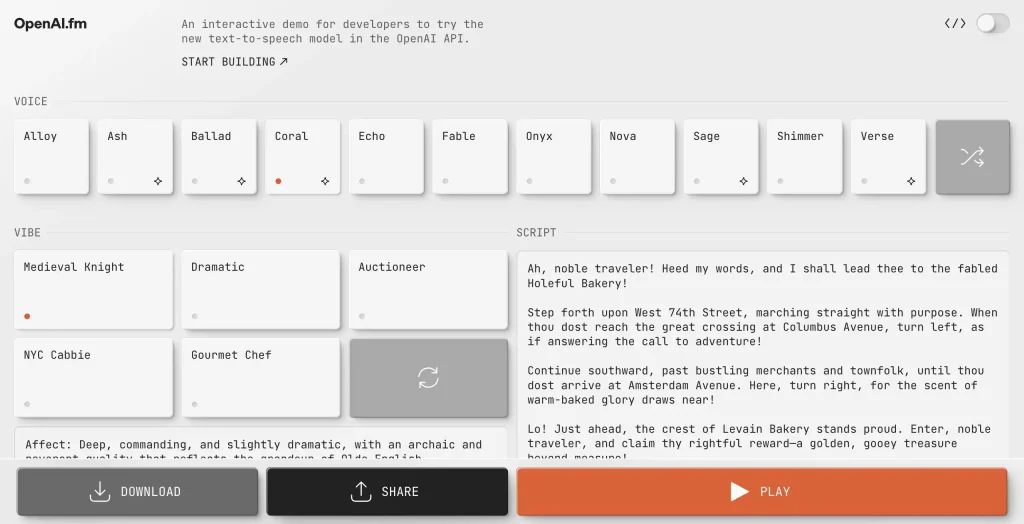
Story script ready hone ke baad next step voiceover generate karna hai.
Demonstration mein iske liye OpenAI.fm website ka use kiya gaya tha.
OpenAI.fm par jaane ke liye yeh link open karein: https://www.openai.fm
Step 1: Open OpenAI.fm
Browser mein OpenAI.fm open karein. Yahan aapko text-to-speech generation ke liye voice options mil sakte hain.
Step 2: Select a Voice
Available voices ko explore karein aur apni story ke mood ke according voice select karein.
For example, mythology story ke liye aap aisi voice choose kar sakte hain jo storytelling ke liye suitable lage.
Voice select karne se pehle available preview sun lena achha rahega.
Step 3: Paste Your Story Script
Ab script input area mein apni generated story paste karein.
Agar pehle se koi sample text diya hua hai, toh use replace karke apni story paste kar dein.
Step 4: Generate Voiceover
Voice aur script check karne ke baad generation option par click karein.
Tool aapke text ko audio mein convert karega. Generation complete hone par audio preview sun sakte hain.
Step 5: Download the Audio File
Voiceover sahi lagne par download option se audio file apne device mein save kar lein.
Ab aapke paas story script ke saath voiceover audio bhi ready hai.
How to Create Folk Art Visuals and Video with Claude AI
Ab hum wapas Claude AI par aayenge. Is step mein generated voiceover ko Claude chat mein upload karna hai.
Step 1: Return to Your Claude Chat
Browser mein Claude AI ka wahi chat open karein jahan Folk Art Explainer Reels skill active hai.
Chat mein skill ke next instructions check karein. Demonstration mein voiceover upload karne ka option diya gaya tha.
Step 2: Upload Your Voiceover
Chat ke attachment ya plus option par click karein.
Apne device se downloaded audio file select karein aur upload complete hone dein.
Step 3: Submit the Audio
Audio upload hone ke baad Send par click karein.
Ab Claude AI story aur uploaded audio ke according visual/video generation ka process start kar sakta hai.
Step 4: Review Generated Images
Video demonstration mein Claude ne pehle story ke according multiple images generate ki thi.
Images ko download ya review karke check karein ki visuals story ke scenes ke saath match kar rahe hain ya nahi.
Agar output mein koi problem ho, toh available options aur skill ke instructions ke according changes karne ki koshish karein.
Step 5: Generate and Download the Video
Video generation complete hone par Claude chat mein output check karein.
Demonstration mein final output MP4 format mein available hua tha. Creator ne output open karke download option se video apne device mein save kiya.
Ab aap video ko play karke check kar sakte hain ki audio aur visuals sahi tarah match ho rahe hain ya nahi.
Important: Image generation aur video generation alag stages ho sakte hain. Sirf images generate ho jaane ka matlab yeh nahi ki final video bhi ready ho gaya hai.
Common Problems and Limitations
Agar aap pehli baar is workflow ko use kar rahe hain, toh kuch problems aa sakti hain. Inmein se kuch common situations aur unke possible solutions neeche diye gaye hain.
Skill Is Not Appearing in Claude AI
Agar upload ke baad skill list mein nahi dikh rahi, toh:
- Check karein ki file upload successfully hui hai.
- Skills section ko dobara open karein.
- Confirm karein ki aap sahi Claude account use kar rahe hain.
- Skill file valid aur supported format mein hai ya nahi, check karein.
Try in Chat Option Is Not Visible
Agar Try in Chat option nahi mil raha, toh skill ke three-dot menu ko check karein. Saath hi confirm karein ki skill properly upload aur enable hui hai.
Images Are Generated but Video Is Not Ready
Kabhi-kabhi image generation complete ho sakti hai, lekin video generation complete nahi hoti.
Aisa usage limits, generation errors ya service availability ki wajah se ho sakta hai.
Claude ke response ko carefully read karein aur agar retry ya resume ka option diya gaya ho, toh uske instructions follow karein.
Claude AI Usage Limit Reached
AI tools mein usage limits ho sakti hain. Agar aapki available usage limit khatam ho gayi hai, toh generation temporarily ruk sakti hai.
Aise mein Claude ke displayed message ko check karein. Limit reset ya account plan se related information ke liye Claude ki current settings aur plan details dekhein.
Video Generation Is Taking Too Long
Video generation mein time lag sakta hai. Yeh task, file size, service availability aur current usage par depend kar sakta hai.
Generation ke dauran Claude ke response ko check karte rahein. Har video ek fixed time mein complete hoga, iski guarantee nahi hoti.
Tips for Creating Better Folk Art Explainer Videos
Agar aap apna pehla video bana rahe hain, toh kuch simple tips follow karna helpful rahega.
1. Start with a Short Story
Starting mein bahut lambi story choose na karein. Ek simple aur interesting topic select karein, jise short video mein explain kiya ja sake.
2. Check the Script Before Generating Voiceover
Generated script ko bina check kiye voiceover mein convert na karein. Story mein koi factual mistake, confusing sentence ya pronunciation issue ho toh pehle correct karein.
3. Choose a Suitable Voice
Story ke mood ke according voice select karein. Voiceover ka tone aur speaking speed audience ke liye comfortable hona chahiye.
4. Review the Generated Images
Har generated image ko check karein. Dekhein ki characters, scenes aur story ka context ek doosre se match kar rahe hain ya nahi.
5. Check the Final Video
Video download karne ke baad use poora play karke dekhein. Audio, visuals, timing aur overall presentation check karna na bhoolein.
Frequently Asked Questions
What Is Folk Art Explainer Reels Skill?
Folk Art Explainer Reels Claude AI ki ek skill hai, jo folk-art-style explainer videos banane ke workflow mein help karti hai. Iske through aap story ideas aur scripts generate karne se lekar visual/video creation ke process tak kaam kar sakte hain.
How Do I Install Folk Art Explainer Reels Skill in Claude AI?
Claude AI mein Settings open karein, Customize section mein jaakar Skills select karein. Add option se Upload Skill choose karein, apni skill file select karein aur upload complete karein.
Can Beginners Use This Claude AI Skill?
Haan, beginners bhi iska workflow explore kar sakte hain. Ismein starting options aur questions ke through aapko guide kiya ja sakta hai. Lekin generated output ko review karna aur basic steps samajhna zaroori hai.
Can I Generate Hindi Story Scripts?
Demonstration mein Hindi language specify karke story script generate ki gayi thi. Aap apni requirement ke according language specify kar sakte hain. Output ka format aur quality skill ke response par depend karega.
Do I Need a Separate Tool for Voiceover?
Video mein voiceover generate karne ke liye OpenAI.fm ka use kiya gaya tha. Isliye us particular workflow mein voiceover banane ke liye ek separate tool use hua.
Why Is Claude AI Not Generating My Video?
Iske kai reasons ho sakte hain, jaise usage limit, generation error, service availability ya incomplete input. Claude ke response mein diye gaye instructions aur error message ko check karein.
Is Folk Art Explainer Reels Skill Free?
Skill, Claude account aur video generation ki availability alag-alag conditions par depend kar sakti hai. Free access ya unlimited video generation assume nahi karna chahiye. Current plan aur usage limits Claude mein check karein.
Final Thoughts
Agar aap folk-art-style explainer videos banana chahte hain aur story writing, voiceover aur visuals ke workflow ko samajhna chahte hain, toh Folk Art Explainer Reels skill explore karna ek achha starting point ho sakta hai.
Is guide mein humne dekha ki Claude AI mein skill kaise upload karni hai, story ideas aur scripts kaise generate karne hain, OpenAI.fm se voiceover kaise banana hai aur audio upload karke video generation ka process kaise start karna hai.
Starting mein ek short story choose karein aur poore workflow ko step by step follow karein. Apne final video ko publish karne se pehle audio aur visuals ko zaroor review karein.
Ab aap bhi apna pehla Folk Art Explainer video banane ka process try kar sakte hain!
Comments ()
Share your thoughts
Log in to comment on this post and interact with other readers.